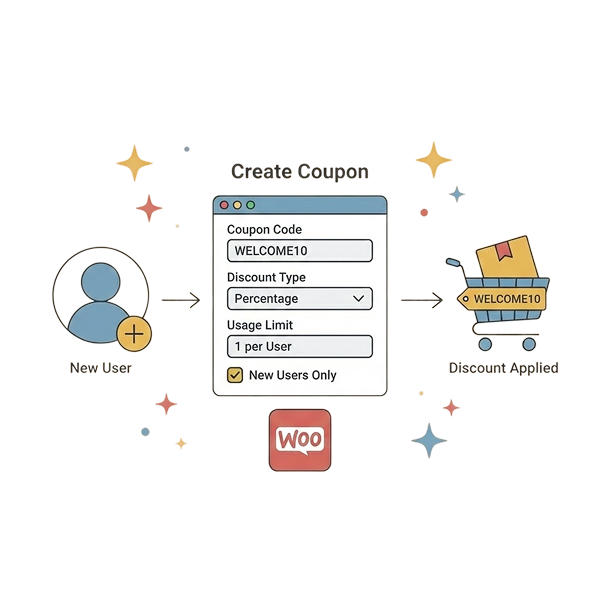
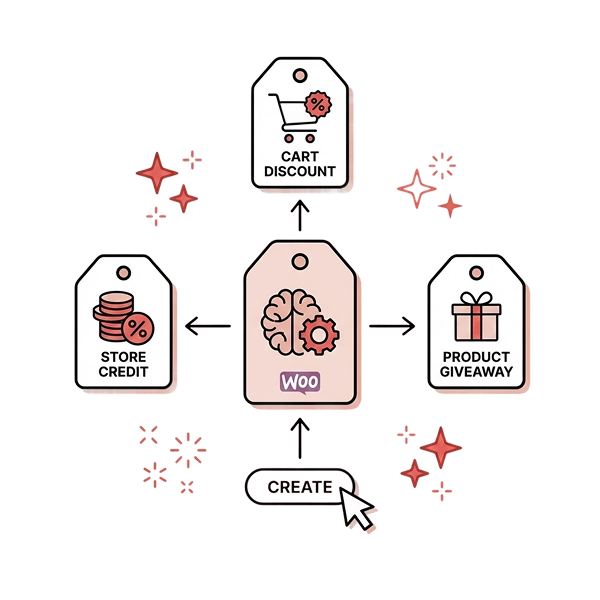
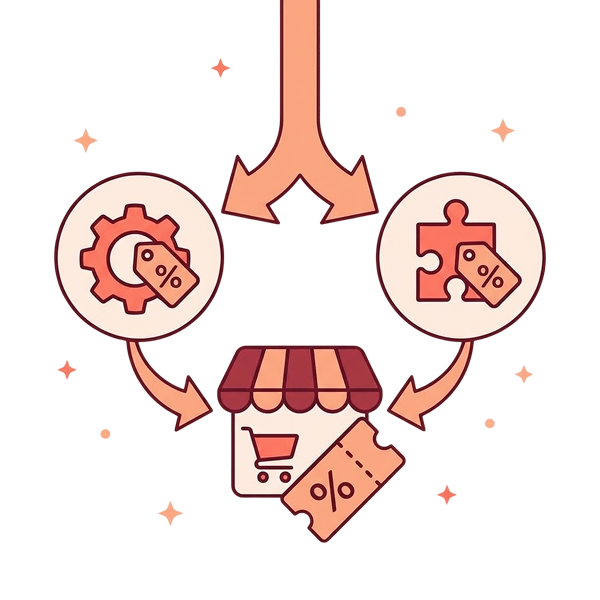
You set one price per product. Every customer – first-time visitor, loyal wholesale buyer, VIP subscriber, bargain hunter – sees the exact same number.
That’s costing you sales every single day.
WooCommerce dynamic pricing solves this. It automatically adjusts your product prices based on who’s buying, how much they’re buying, when they’re buying, and what’s already in their cart – without touching a product page each time.
The numbers back it up. Dynamic pricing increases profits by 5–8% on average across eCommerce stores (Source: Onramp Funds, 2025). Amazon runs this at scale – adjusting prices 2.5 million times daily – and credits it for a 25% revenue boost. For a WooCommerce store with 4–5 figures in monthly revenue, even a 5% lift is real money.
And here’s the thing – 30% of eCommerce companies already use dynamic pricing strategies. If you’re not one of them, you’re competing at a disadvantage.
By the end of this guide, you’ll know how to:
- Pick the right type of dynamic pricing for your specific business model
- Set up bulk, tiered, role-based, and cart-based discount rules step by step
- Stack rules without cannibalising your margins
- Avoid the 6 mistakes that store owners hit most in community forums
- Measure whether your setup is actually working within 30 days
Important: WooCommerce does NOT include dynamic pricing out of the box. This guide uses Discount Rules for WooCommerce – a free plugin with 100,000+ active installs – for all setup examples.
Not sure which discount type you need? The free version of Discount Rules for WooCommerce handles bulk, cart, and category pricing – the three most common setups – right out of the box.
Table of contents
- What Is WooCommerce Dynamic Pricing?
- Why WooCommerce Stores Need Dynamic Pricing in 2026
- 8 Types of WooCommerce Dynamic Pricing – With Real Use Cases
- Which Dynamic Pricing Type Should YOU Use?
- How to Set Up WooCommerce Dynamic Pricing – Step-by-Step
- Prerequisites – Before You Start
- Step 1 – Install Discount Rules for WooCommerce
- Step 2 – Create a Bulk Discount Rule (Free)
- Step 3 – Add Role-Based Conditions (PRO Required)
- Step 4 – Set Up a Cart Total Discount (Free)
- Step 5 – Enable the Discount Table on Product Pages
- Step 6 – Schedule Time-Based Pricing (PRO Required)
- Step 7 – Verify Your Setup Works
- Advanced Dynamic Pricing Strategies
- 6 Dynamic Pricing Mistakes That Kill Your Margins
- How to Measure If Your Dynamic Pricing Is Working
- Conclusion
- Frequently Asked Questions
What Is WooCommerce Dynamic Pricing?
WooCommerce dynamic pricing is a pricing strategy where product prices or discounts adjust automatically based on rules you define – such as quantity purchased, customer role, cart total, or time of purchase – without requiring coupon codes or manual price changes.
Instead of one fixed price for everyone, your store applies the right price to the right customer at the right moment. The rules run silently in the background.
Dynamic Pricing vs. Static Pricing – Side by Side
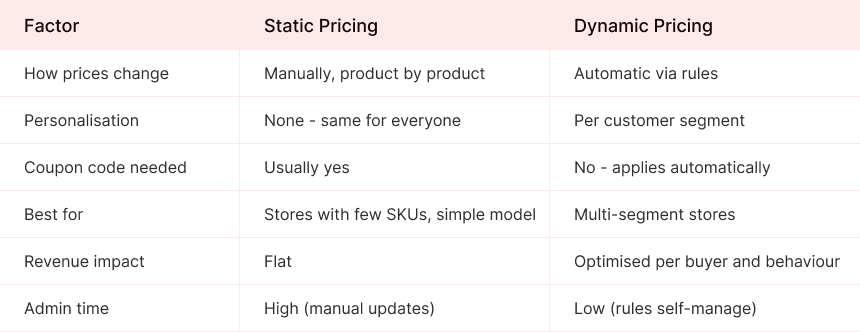
A quick real-world comparison:
Imagine you sell protein supplements. You have retail customers and gym wholesale buyers. With static pricing, both pay $45 per tub.
With dynamic pricing:
- Retail customer buying 1–4 units → $45 each
- Retail customer buying 5+ units → $40 each (automatic bulk discount)
- Wholesale buyer logged in to their account → $32 each (role-based rule)
Nobody enters a coupon. Nobody calls you to ask about wholesale rates. The rules just run.
Common Misconceptions – And the Truth
Misconception 1: “Dynamic pricing means raising prices when demand is high.” That’s surge pricing – what Uber does. WooCommerce dynamic pricing for store owners is almost entirely about structured discounts, not price hikes. You’re rewarding buying behaviour, not penalising it.
Misconception 2: “It’s too technical for small stores.” A basic quantity discount on all products – the most common rule type – takes under 5 minutes to create in the free version of Discount Rules for WooCommerce. No coding. No developer needed.
Misconception 3: “Customers resent price changes.” Only when changes are hidden or feel manipulative. A viral Reddit thread about airline pricing specifically highlighted secret price hikes as the problem – not structured store discounts that customers can see on the product page. Transparent tiered pricing tables actually increase trust, not erode it.
🎯 Key Takeaway – What Is WooCommerce Dynamic Pricing? Dynamic pricing automatically adjusts product prices based on rules (quantity, role, cart total, time). It applies without coupon codes, requires no manual intervention, and works differently from surge pricing – it’s built around giving discounts, not raising prices.
Why WooCommerce Stores Need Dynamic Pricing in 2026
Dynamic pricing in WooCommerce is no longer a “nice to have” feature reserved for large stores. With 4.5 million+ WooCommerce stores globally competing for the same customers (Source: StoreLeads, 2025), the stores that grow are the ones that adjust price to match buyer intent – automatically.
The Numbers That Make the Case
Here’s what the data says:
- Dynamic pricing delivers a 5–8% average profit increase across eCommerce stores (Source: Onramp Funds, 2025)
- A McKinsey study found that a 1% improvement in price optimisation translates to a 22% increase in EBITDAmargins – making pricing the highest-leverage operational lever available (McKinsey & Company)
- 1 in 4 shoppers abandon their cart if they find a better price elsewhere (Source: Kodytechnolab, 2025)
- 30% of eCommerce companies already use dynamic pricing strategies – and that share is growing (Source: Onramp Funds, 2025)
- The dynamic pricing software market is projected to grow from $6.16 billion in 2025 to $41.43 billion by 2033 at a 31.29% CAGR (Source:Couture.ai, 2025)
For WooCommerce stores specifically:
- Stores offering upsell/cross-sell plugins see 10–30% revenue increases (Source: Marketing LTB, 2025)
- Adding free shipping offers (a form of dynamic reward) improves conversion by 20–40%
- Stores with optimised checkout flows see 15–35% higher conversion rates overall
Real Questions from Store Owners – Reddit and Quora
We spend time in WooCommerce communities –r/woocommerce, the WordPress support forums, Quora WooCommerce threads – because that’s where real pain points surface. Here are the questions that come up again and again:
“I need my wholesale customers to automatically see their price without me creating duplicate products for every single item. How do I do this?”
Solved by Role-Based Pricing
“Customers keep adding 4 items individually instead of buying 5 for the bulk discount. The discount IS set up but they never trigger it.”
→ Solved by adding a discount table on the product page and a promotional message in the cart – both covered in the setup steps.
Consistent answers highlight three must-haves: (1) no coupon code needed, (2) works correctly with variable products, (3) shows pricing tiers on the product page before checkout.
All three are covered in this guide.
8 Types of WooCommerce Dynamic Pricing – With Real Use Cases
The 8 types of WooCommerce dynamic pricing are: quantity-based (bulk) pricing, tiered pricing, role-based pricing, cart total-based pricing, category pricing, BOGO/Buy X Get Y, time-based/scheduled pricing, and location-based pricing. Each type serves a different business goal and customer segment.
Quick Comparison Table – Dynamic pricing Types
| Type | Trigger | Needs PRO? | Best For |
| Bulk / Quantity | Units purchased | Free | Move inventory, raise AOV |
| Tiered Pricing | Units + page display | Free | B2B, wholesale |
| Role-Based | User role at login | PRO | Wholesale/retail hybrid |
| Cart Total | Subtotal threshold | Free | AOV uplift, sitewide |
| Category | Product category | Free | Department sales, clearance |
| BOGO / Buy X Get Y | Qualifying purchase | PRO | Promotions, gifting psychology |
| Scheduled | Date/time range | PRO | Black Friday, flash sales |
| Location | Country / region | PRO | International stores |
1. Quantity-Based (Bulk) Pricing
Quantity-based pricing reduces the price per unit as the quantity purchased increases. The more a customer buys in one transaction, the better the price they receive – automatically, without a coupon.
Example rule:
- 1–4 units → $25 each (standard price)
- 5–9 units → $22 each (12% off)
- 10+ units → $18 each (28% off)
Best for:
- Stores with physical products that have lower fulfilment cost per unit at scale
- Any store where “more units per order” directly improves margin or reduces shipping cost
- Stores competing on unit price in commodity categories
Real-world scenario: You sell candles at $12 each. Your break-even is $7. Setting tiers at $10 for 5+ units and $8.50 for 10+ units is fine. Setting $7.50 for 20+ units starts eating your margin – especially once shipping is factored in.
Drawback to know: If your margin is thin, deep bulk tiers can push orders into unprofitable territory. Always calculate your price floor before setting the lowest tier.
2. Tiered Pricing
Tiered pricing is a type of quantity-based pricing where a pricing table is displayed directly on the product page – showing all discount thresholds before the customer adds anything to their cart.
The table acts as a buying incentive. A customer who was planning to buy 4 units sees that buying 6 saves them $4 per unit, and adjusts their order.
Example table on product page:
| Quantity | Price Per Unit | You Save |
| 1–5 | $30.00 | – |
| 6–10 | $26.00 | $4/unit |
| 11–20 | $22.00 | $8/unit |
| 21+ | $18.00 | $12/unit |
What makes this different from bulk pricing? Bulk pricing applies at checkout. Tiered pricing shows the structure on the product page so customers plan their order size before they even click Add to Cart. It’s the same rule – different display.
Best for: B2B buyers and wholesale customers who calculate cost per unit before ordering. Showing tiers upfront removes the need for them to call you and ask.
Drawback: If tiers are too complex (7+ rows), decision fatigue sets in and buyers stall. Keep it to 3–4 tiers.
3. Role-Based Pricing
Role-based pricing is a WooCommerce dynamic pricing method where different prices are shown to customers based on their assigned WordPress user role. A wholesale customer logging in sees wholesale prices. A retail customer sees full price. Neither needs a coupon code.
Example:
- User Role = Retail Customer → $45/unit (standard)
- User Role = Wholesale Buyer → $32/unit (29% off, automatic)
- User Role = VIP Subscriber → $38/unit + free shipping (conditional)
Why this matters: Before role-based pricing exists, most wholesale stores manage pricing one of two ways – both painful. Either they create duplicate product listings at different prices, or they issue bulk coupon codes that get shared publicly and misused.
We’ve seen stores at Flycart with 500+ wholesale SKUs running duplicate product libraries. Role-based pricing eliminates that entirely – one product listing, prices controlled by user role at login.
Best for:
- Wholesale + retail hybrid stores (the #1 use case we see)
- Membership-based stores (Gold/Silver/Bronze tier pricing)
- Stores with a reseller or agency channel at different margin structure
Drawback: Requires the PRO version of Discount Rules. Also requires that wholesale customers have their WordPress user role correctly assigned before the discount activates.
4. Cart Total-Based Pricing
Cart total-based pricing applies a discount when the customer’s cart reaches a defined subtotal threshold. It’s the “spend more, save more” model – automatic, no coupon required.
Example:
- Cart subtotal ≥ $75 → 5% off entire cart
- Cart subtotal ≥ $150 → 10% off entire cart
- Cart subtotal ≥ $300 → 15% off + free shipping
Why it works: The average WooCommerce transaction value is $79 (Source: Marketing LTB, 2025). Setting the first threshold just above your average – say $90 – gives nearly every customer a reason to add one more item.
Best for: Stores where average order value needs lifting. Works well combined with a cart progress bar (“You’re $22 away from 10% off”) to make the incentive visible.
Drawback: If your margins are thin on low-price products, a sitewide cart discount can be triggered by a cart full of your worst-margin items. Add product exclusions for these.
5. Category Pricing
Category pricing applies a discount percentage or fixed reduction to all products within specific WooCommerce product categories – without touching individual product prices.
Example:
- All products in “Summer Collection” category → 25% off
- All products in “Electronics” category → 10% off, logged-in users only
- All products in “Clearance” category → 40% off, available from June 1–14 only
Why it’s better than editing individual prices: A category with 80 products would take hours to update manually – and you’d need to reverse every change after the sale. A category pricing rule applies and removes itself on a schedule, touching zero product listings.
Best for: Seasonal sales, department-level promotions, and inventory clearance by product group.
Drawback: If a product sits in two categories and two different category rules are active, you can end up with unexpected stacking. Always review your category structure before creating rules.
6. BOGO and Buy X Get Y
BOGO (Buy One Get One) and Buy X Get Y are promotional pricing types where purchasing a qualifying product or quantity unlocks a free or discounted item – automatically added to cart or applied at checkout.
Common configurations:
- Buy 1 shirt → get 1 shirt free (classic BOGO)
- Buy 3 from any category → get the cheapest one free
- Buy 2 of Product A → get Product B at 50% off
- Buy 5 items → get the lowest-priced item free
Why customers love it: BOGO mechanics feel like a “gift” rather than a discount. Psychologically, getting something free is perceived as a bigger win than an equivalent percentage discount.
Real-world scenario: You sell skincare products. Instead of 20% off a moisturiser (which feels like a sale), you run “Buy any cleanser, get a travel-size moisturiser free.” The customer feels like they got something – not that the product was marked down.
Drawback: You need to manage which products are eligible carefully. A badly scoped BOGO rule (e.g., “cheapest item free on any 3 items”) can give away high-margin products you didn’t intend to discount.
7. Time-Based / Scheduled Pricing
Scheduled pricing applies discounts automatically during defined date and time ranges – turning on when a sale starts and turning off when it ends, with no manual action from you.
Example configurations:
- Flash sale: 30% off for 48 hours, activates Friday at midnight, deactivates Sunday midnight
- Weekend deals: 15% off, every Saturday and Sunday only
- Early-bird pricing: first 14 days of a product launch at reduced price
Why this beats manual sale management: We’ve seen stores come to us at Flycart after manually disabling a “48-hour flash sale” three days after it ended – because no one remembered to turn it off. Scheduled pricing eliminates that entirely. The rule expires on its own.
Best for: Black Friday, seasonal campaigns, product launch pricing, and weekly promotional cycles that repeat.
Drawback: If you set the wrong date format (MM/DD vs DD/MM), the rule fires at the wrong time. Always double-check the timezone setting in WordPress Settings → General before creating time-based rules.
8. Location-Based Pricing
Location-based pricing adjusts product prices based on the customer’s shipping country or region – allowing different pricing structures for different geographic markets.
Example:
- US customers → standard price ($45)
- EU customers → VAT-inclusive price ($52)
- Developing market countries → reduced regional price ($32)
Best for: Stores with international customer bases where purchasing power, tax structures, or competitive pricing varies by region.
Checkout: WooCommerce Location-Based Pricing Guide
Drawback: This is the most complex rule type to configure correctly. Currency differences, legal requirements, and tax rules by country all need to be factored in before going live. Start with 1–2 countries as a test before rolling out globally.
💡 Pro Tip: Don’t try to implement all 8 types at once. Start with the one that solves your biggest current problem. Add a second type only after you’ve verified the first is working and measured its impact.
🎯 Key Takeaway – 8 Types of WooCommerce Dynamic Pricing There are 8 distinct pricing types for WooCommerce, each solving a different problem. Bulk and cart total rules are available free. Role-based, BOGO, scheduled, and location-based pricing require the PRO version. Every type has a trade-off – know the drawback before you activate the rule.
Which Dynamic Pricing Type Should YOU Use?
The right WooCommerce dynamic pricing type for your store depends entirely on your business model, your customer mix, and your most pressing revenue challenge. This framework cuts through the options to match your situation to the right starting point.
If You Run a Wholesale or B2B Store
Use: Role-Based Pricing + Tiered Pricing (combined)
Your wholesale customers need to see their prices automatically when they log in – no coupon, no asking. Tiered pricing then gives them a quantity incentive on top of their base wholesale rate.
Setup approach:
- Create a “Wholesale” user role in WordPress (via User Role Editor plugin)
- Assign all wholesale customers to this role
- Set a Role-Based Pricing rule: Wholesale role → 20% off all products
- Set a Bulk Discount rule: Buy 10+ units (Wholesale role condition) → additional 5% off
- Enable the discount table on product pages so buyers can see all tiers at once
We’ve helped configure this exact structure for wholesale supplement stores, craft supply shops, and B2B hardware distributors. In every case, the immediate outcome is the same: wholesale customers stop calling to ask “what’s my price?” because the answer is on their screen.
If You Sell High-Volume or Commodity Products
Use: Quantity-Based (Bulk) Pricing – 3–4 tiers max
When customers can buy the same or similar product elsewhere, price per unit at scale is a real decision factor. A quantity discount that visibly improves with each tier is a direct competitive signal.
Rule of thumb: Set tiers at the natural buying breaks for your category.
- If typical orders are 1–5 units → first break at 5
- If typical orders are 10–20 → first break at 10
- If buyers regularly order 50+ → set a tier there too
Don’t create 6 tiers to cover every possibility. Three tiers (standard, mid-volume, high-volume) is almost always enough.
If You Want to Clear Inventory Fast
Use: Category Pricing with a Scheduled Rule
Pick the product category containing slow-moving stock. Set a 30–40% off rule. Give it a 7–10 day schedule. Done.
The key is the schedule – it creates genuine urgency because the discount is real, time-limited, and visible. You don’t need a countdown timer or pop-up. The product page showing a lower price with a strikethrough through the original is enough.
If You Have Multiple Customer Segments
Use: Role-Based Pricing with Separate Rules per Role
Create separate rules per segment:
- Role = Wholesale → 20% off all products
- Role = VIP Member → 10% off + free shipping over $50
- Role = Guest / Retail → standard price (no rule needed)
Each customer type gets the right pricing experience without seeing anyone else’s.
Tip: Don’t try to manage this with coupons. Coupon codes get shared outside your intended audience every time.
If You Run Seasonal Campaigns (Black Friday, Christmas, etc.)
Use: Scheduled Category or Product Pricing + BOGO
Scheduled rules mean the sale turns on and off without your involvement. BOGO mechanics drive share-ability – “Buy 2, get 1 free” gets forwarded to friends in a way that “20% off” does not.
Combine both:
- Scheduled 20% off the whole clothing category (starts Black Friday midnight, ends Cyber Monday midnight)
- BOGO on accessories: Buy 2, get 1 free (same schedule)
- Optional: Cart total threshold for additional savings – “Spend $200, get an extra 10% off”
💡 Pro Tip: If you’re unsure which type to start with, ask this question: “What is the single biggest reason my customers are NOT buying more per order?” If the answer is price per unit – start with bulk pricing. If the answer is they don’t feel rewarded for loyalty – start with role-based. If the answer is cart abandonment near a threshold – start with cart total rules.
🎯 Key Takeaway – Which Type Is Right for You? Match pricing type to your business model: wholesale stores → role-based + tiered. Volume sellers → bulk pricing. Inventory clearance → scheduled category. Multi-segment stores → role-based rules per segment. Don’t start with all types at once – pick the one that solves your biggest problem first.
How to Set Up WooCommerce Dynamic Pricing – Step-by-Step
This section walks through setting up the four most-used dynamic pricing rule types in Discount Rules for WooCommerce. Each step includes the exact UI path and the expected result so you can verify as you go.
Prerequisites – Before You Start
Before creating your first rule, confirm these are in place:
- ✅ WordPress: 6.4 or higher
- ✅ WooCommerce: 8.0 or higher (tested on 9.x)
- ✅ Discount Rules for WooCommerce: Installed and activated (free version)
- ✅ Discount Rules PRO (required for role-based, scheduled, and location-based rules)
- ✅ At least one product with a price set in WooCommerce
- ✅ User roles created (for role-based pricing – use User Role Editor plugin)
- ⏱️ Time required: 5–10 minutes per rule
- 🎯 Difficulty: Beginner
Step 1 – Install Discount Rules for WooCommerce
- Go to WordPress Dashboard → Plugins → Add New
- Search: Discount Rules for WooCommerce
- Find the plugin by Flycart (100,000+ installs) → Click Install Now → Activate
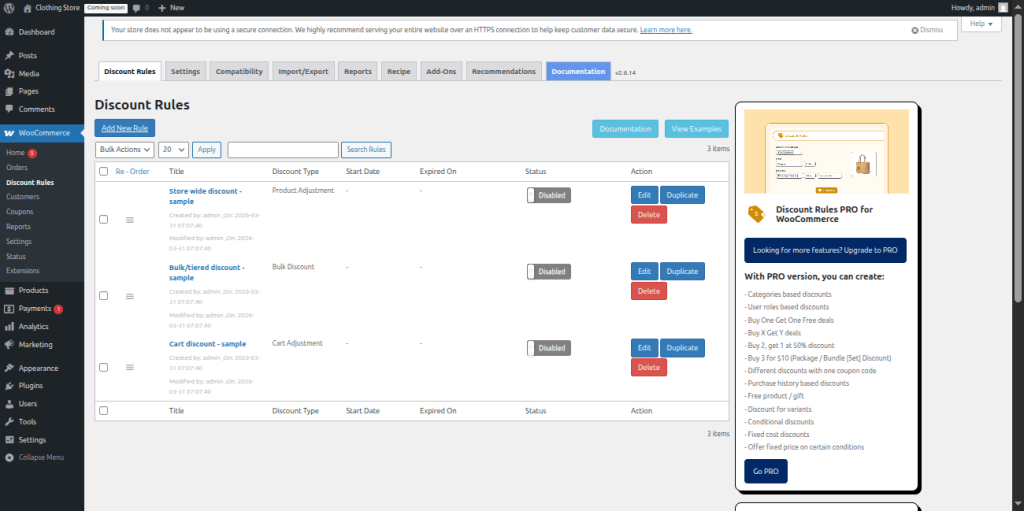
- Navigate to WooCommerce → Discount Rules – this is your rule dashboard
Expected Result: “Discount Rules” appears under the WooCommerce menu. The dashboard shows an empty rules list with an “Add New Rule” button.
Step 2 – Create a Bulk Discount Rule (Free)
Goal: Buy 5–9 units → 10% off. Buy 10+ units → 20% off. No coupon needed.
- Click Add New Rule
- Rule Title: Type “Bulk Discount – All Products” (for your reference only)
- Discount Type: Select Bulk Discount
- Filter section: Choose All Products (applies across your entire store)
- Discount section:
- Count Quantities by: Individual product
- Row 1: Min qty = 5, Max qty = 9, Discount Type = Percentage Discount, Value = 10, Label = 5+ units
- Click Add Range
- Row 2: Min qty = 10, Max qty = 9999, Discount Type = Percentage Discount, Value = 20, Label = 10+ units
- Click Save
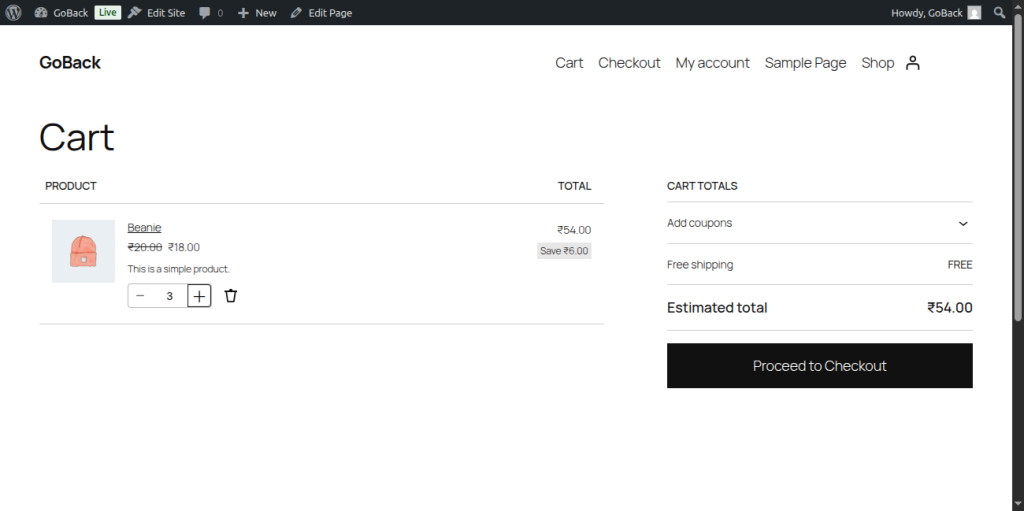
Expected Result: The rule shows as “Active” in your rules list. Add 5 of any product to a test cart – the price should drop 10% automatically, visible as a line item in the cart.
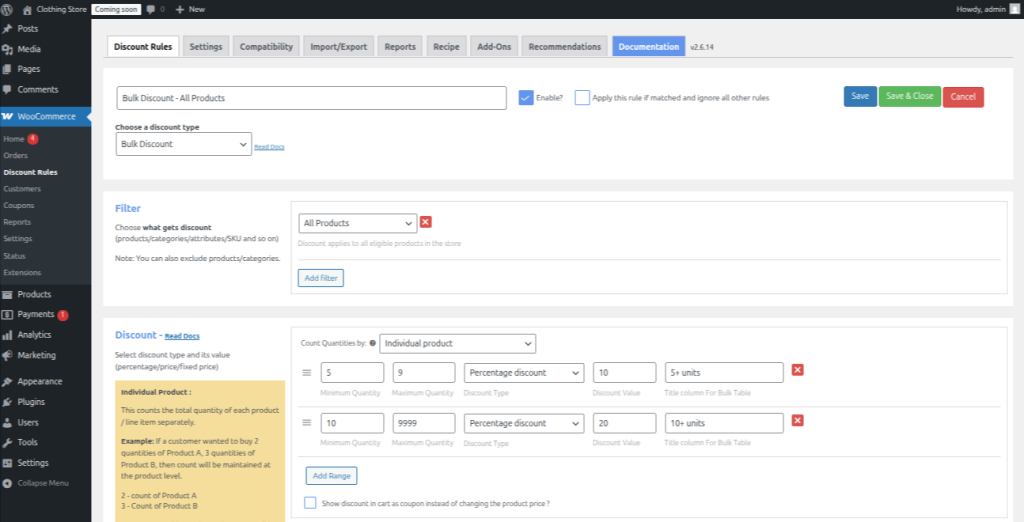
⚠️ Warning: Setting the maximum quantity to 0 (instead of 9999) will break the rule – the discount won’t apply. Always set a high max number for your open-ended top tier.
Step 3 – Add Role-Based Conditions (PRO Required)
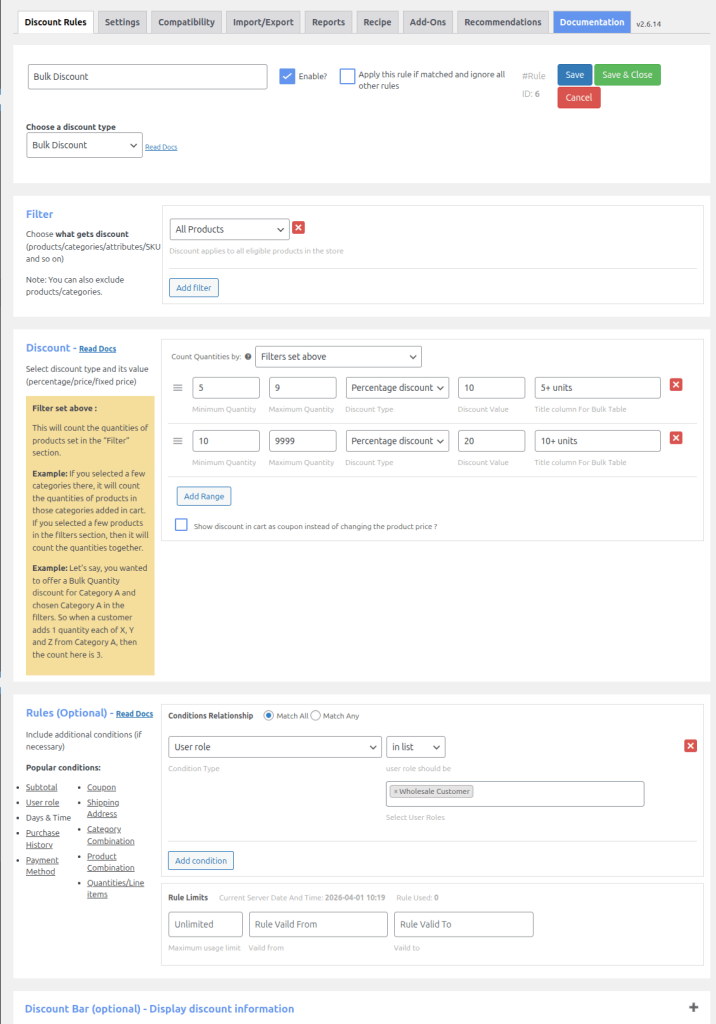
Goal: Make the bulk discount from Step 2 apply only to wholesale customers.
- Open the rule from Step 2
- Scroll to the Rules (Optional) section at the bottom
- Click Add Condition
- Select User Role from the dropdown
- Choose Wholesale Customer (or the role name you created)
- Conditions Relationship: Set to Match All
- Click Save
Expected Result: Test with a guest account – no discount should show. Log in with a wholesale-role account and add 5 products – the 10% bulk discount should activate.
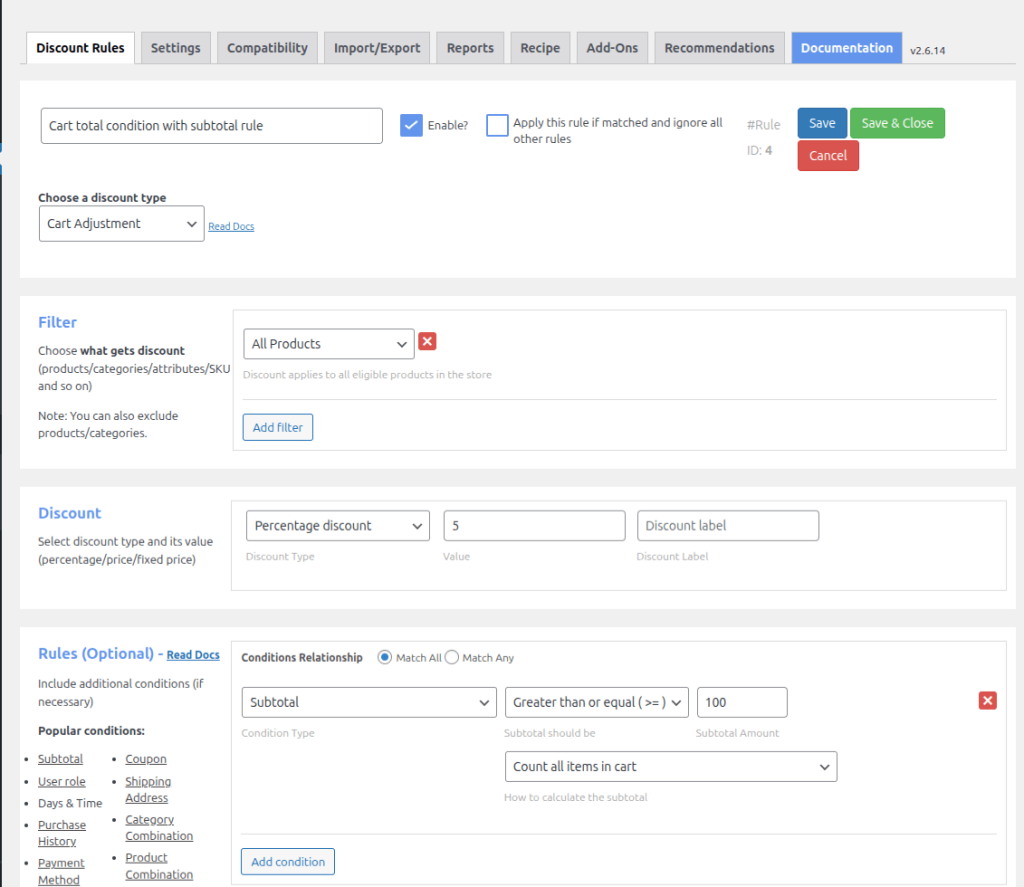
Step 4 – Set Up a Cart Total Discount (Free)
Goal: When the cart hits $100, apply 5% off the total automatically.
- Click Add New Rule
- Discount Type: Select Cart Adjustment
- Filter: All Products
- Discount: Percentage Discount = 5
- Scroll to Rules (Optional) → Click Add Condition
- Select Subtotal → Greater than or equal to → Enter 100
- Click Save
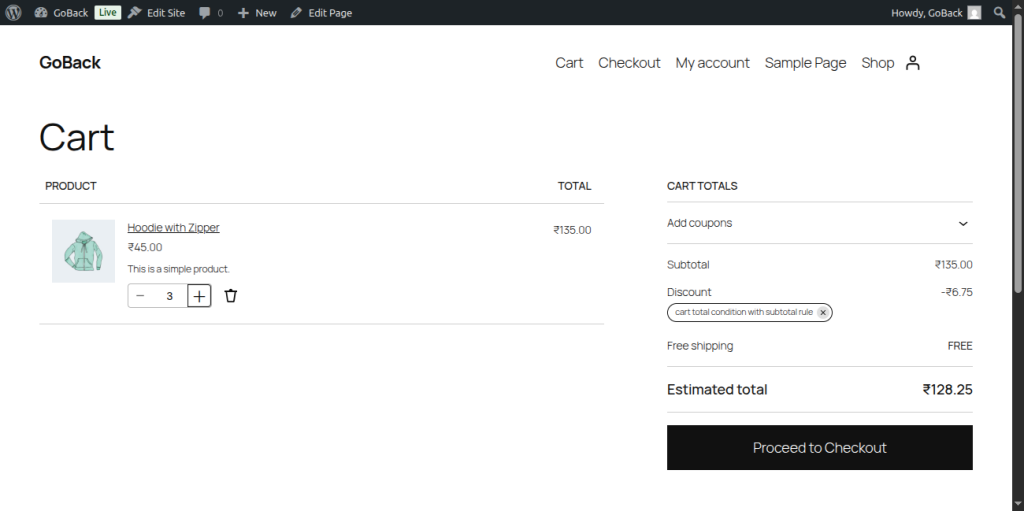
Expected Result: Add products totalling $100+ to a test cart. A “5% discount” line item should appear at checkout. Below $100, no discount shows.
Step 5 – Enable the Discount Table on Product Pages
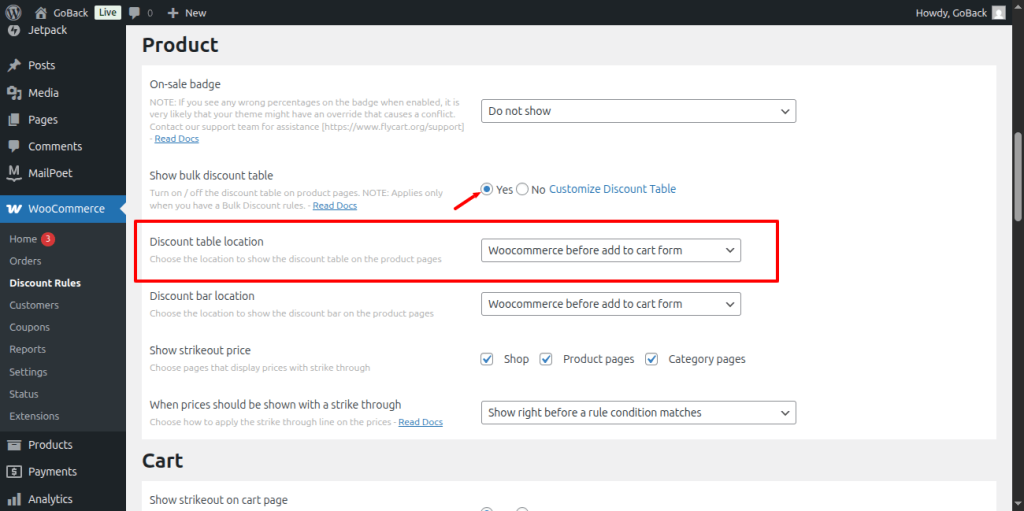
The pricing table displays your active tiered pricing to customers directly on the product page – before they add anything to cart.
- Go to WooCommerce → Discount Rules → Settings
- Select the Display Settings tab
- Toggle Pricing Table to Enabled
- Choose placement: Before Add to Cart Button or After Add to Cart Button
- Customise column labels if needed (e.g., “Quantity”, “Your Price”, “Saving”)
- Click Save Settings
Expected Result: Visit any product page with an active bulk or tiered rule. You should see a table showing all quantity tiers and corresponding prices below the main price.
SCREENSHOT PLACEHOLDER – Image 7: Step 5 – Tiered pricing table displayed on product page. Filename: step-5-pricing-table-product-page-woocommerce.webp
For full display options checkout:
Step 6 – Schedule Time-Based Pricing (PRO Required)
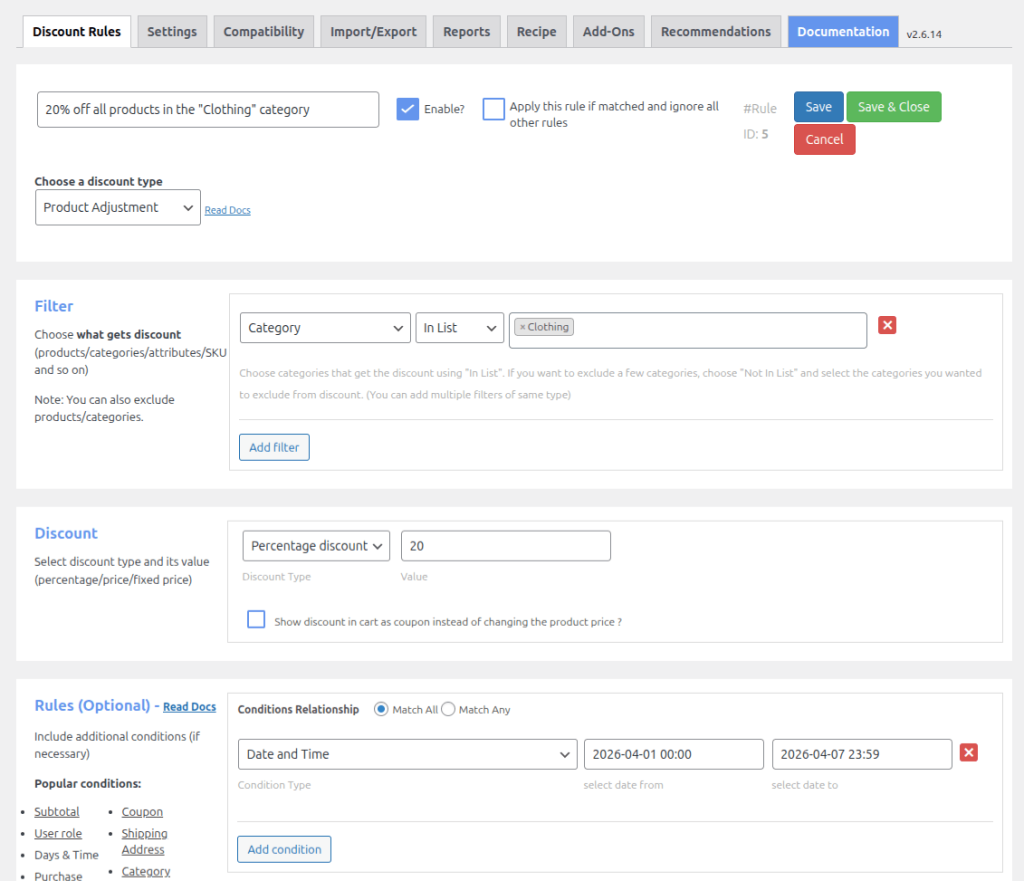
Goal: 20% off all products in the “Clothing” category from April 1–7 only.
- Click Add New Rule
- Discount Type: Product Adjustment
- Filter: Select Categories → Choose Clothing
- Discount: Percentage Discount = 20
- Scroll to Rules (Optional) → Click Add Condition
- Select Days & Time → Set Start Date = 2026-04-01 00:00 and End Date = 2026-04-07 23:59
- Click Save
Expected Result: Before April 1, clothing products show full price. During April 1–7, the 20% discount applies automatically. After April 7, prices return to normal – no manual action needed.
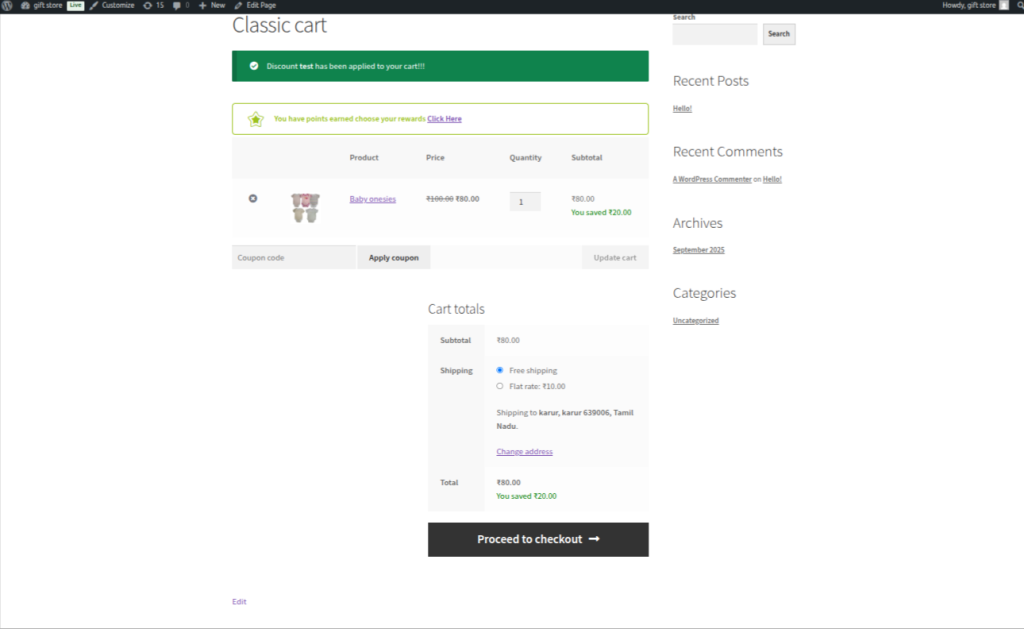
Step 7 – Verify Your Setup Works
After creating your rules, always test before they go live to real customers:
Testing checklist:
Download the Dynamic Pricing Setup Checklist
A practical checklist to set up dynamic pricing the right way — free to download.
💡 Common issue: Discount not showing after setup? Go to WooCommerce → Status → Tools → Clear Transients. Then clear your site’s cache (if you use a caching plugin like WP Rocket or W3 Total Cache).
💡 Pro Tip: After verifying your rule works on a staging environment or test product, run it for 2 weeks before making changes. You need real data from real carts before you can judge whether the rule is performing.
🎯 Key Takeaway – Setup Steps The basic setup (bulk, cart total, category rules) is free and takes under 10 minutes. Role-based and scheduled rules need PRO. Always test with guest + customer + wholesale accounts before going live. Clear cache if discounts aren’t showing after setup.
Advanced Dynamic Pricing Strategies
Once your basic rules are running, these three advanced strategies separate stores that just have discounts from stores that have a pricing system.
Stacking Multiple Discount Rules
Stacking is when multiple active rules apply to the same product or cart at the same time. Without a priority system, stacking can produce unexpected compound discounts – or no discount at all, depending on which rule “wins.”
How the Discount Rules priority system works:
- Every rule has a priority number (set in the rule settings)
- Lower number = higher priority. Rule #1 runs before Rule #5
- Enable “Apply this rule if matched and ignore all other rules” to stop further rule processing after your most critical rule fires
Stacking example that works:
- Rule A (Priority 1): Wholesale customers → 20% off all products. “Ignore all other rules” enabled.
- Rule B (Priority 2): Buy 10+ units → additional 5% off. Applies only if Rule A didn’t fire.
Stacking example that breaks things:
- Rule A: 20% off clothing category
- Rule B: Buy 5+ items → 15% off all products
- Rule C: Cart subtotal ≥ $100 → 10% off
All three fire simultaneously with no priority. A wholesale customer buying 12 shirts worth $150 could get ~40% compounded off. Your margin just evaporated.
The fix: Explicitly set priorities. Review your active rules list monthly. Use the “ignore all other rules” checkbox on your most important discount tier.
Combining Dynamic Pricing with Coupons
Dynamic pricing and coupons aren’t mutually exclusive. Two legitimate combination strategies:
Approach 1 – Coupon activates a hidden pricing tier Use a coupon code as a condition to unlock a specific discount rule. The customer enters the code → the rule fires.
Use case: Partner promotions. You give an influencer a unique code. Anyone who uses that code unlocks 25% off the electronics category – and you can track which partner drove which sales.
Approach 2 – Coupon stacks on top of auto-pricing A customer qualifies for the 10% bulk discount automatically, then applies a VIP coupon for an additional 5% off. Combined: 15% off.
Set this up carefully:
- Define a minimum final price in the rule settings to prevent excessive stacking
- Use Discount Rules’ “Maximum Discount Cap” setting if available
- Consider restricting certain products from being eligible for coupon stacking via product exclusions
💡 Pro Tip: When building your stacking strategy, write it out on paper first. List every active rule, its condition, its discount value, and whether it can fire simultaneously with others. If you can’t explain in one sentence what discount a wholesale customer buying 12 items worth $180 would get – your rule set is too complex.
🎯 Key Takeaway – Advanced Strategies Rule stacking requires explicit priority settings – without them, compound discounts can collapse your margin. Coupons can be used as rule triggers or as stackable extras (with a cap). Pairing dynamic pricing with WPLoyalty creates a self-reinforcing buying cycle that pure discount strategies can’t replicate.
6 Dynamic Pricing Mistakes That Kill Your Margins
These mistakes come from community discussions on r/woocommerce, the WooCommerce.org support forums, and support requests processed through Flycart’s own ticket system. They’re the real-world failures, not theoretical edge cases.
Mistake 1 – No Price Floor on Bulk Discounts
You create a tiered discount with 5 tiers going down to your 25% off level. A wholesale customer places a 300-unit order. Your margin on that product was 28%. After the 25% discount, you’re working for 3%.
The fix: Before creating any bulk tier, calculate:
- Your product cost (COGS)
- Your fulfilment cost per unit (pick, pack, ship)
- Your minimum acceptable profit margin
Then set your deepest bulk discount tier so the resulting price still clears your minimum margin. In Discount Rules, use fixed price-per-unit rules (not just percentages) if you need to enforce a hard floor.
Mistake 2 – Rule Stacking Without Priority
Three rules active simultaneously, no priority set, conditions partially overlapping. A customer qualifies for all three. The combined discount is 35% off. Your product at 35% off is below cost.
The fix: As covered in the Advanced section – set explicit priorities. For your most important rule (usually your highest-value segment: wholesale or premium tier), enable “Apply this rule if matched and ignore all other rules.” Test with overlapping carts before going live.
Checkout: How to Set Priority of Discount Rules in WooCommerce
Mistake 3 – Discounting in Silence
You set up a perfect tiered pricing structure. A customer buys 4 units. They had no idea that buying 1 more would save them $12. They leave satisfied but undertransacted. You leave money on the table.
The fix – three visibility tools:
- Discount Table on product page – shows all tiers before the customer clicks Add to Cart (see Step 5 above)
- Promotional message in the cart – “Add 2 more items to unlock 15% off!” This single message is responsible for some of the highest-ROI uplift we see in stores using Discount Rules.
- Strikethrough pricing – show the original price crossed out next to the discounted price, so savings are visible at a glance
Checkout: Display Promotional Messages Based on Cart Quantity
Mistake 4 – “All Products” Rule That Catches Everything
You want to run a sale on slow-moving stock. You create a rule: 30% off, filter = All Products. You meant your clearance items. The rule applies to your new arrivals, your bestsellers, and your highest-margin products too.
The fix:
- Use the Categories or Products filter in Discount Rules to scope your rule precisely
- Use the Exclude Products/Categories option to protect items you never want discounted
- For clearance-style sales, create a dedicated “Clearance” category in WooCommerce and run rules against that category only
Mistake 5 – Ignoring Variable Products
This one is specific to stores selling products with multiple variations (sizes, colours, flavours). The quantity counting logic matters here.
The problem: You sell t-shirts in S/M/L/XL. Your bulk discount is set to count “individual product” quantities. A customer buys 3 Medium and 3 Large = 6 total. But the rule counts them as 3+3 (two separate products) rather than 6 – so the discount tier that requires 5+ never fires.
The fix: In the Discount Rule, change Count Quantities by to All variations of the same product. This counts S + M + L + XL as a combined quantity toward the discount tier.
This setting issue is one of the most common support requests we handle at Flycart for apparel, supplement, and cosmetics stores. Getting it right makes the discount behave exactly how a customer expects.
Checkout: How to Setup Product Variations Discount Pricing
Mistake 6 – Going Live Without Testing
You create a rule, it looks right in the backend, you save it and assume it’s working. Three days later, a customer emails asking why they weren’t given their promised discount.
What actually happened: The rule conflicted with another active plugin (a membership plugin modifying prices, a page builder running its own price hooks). The discount never fired – but you had no way to know because you only verified in the backend, not the frontend.
The full testing checklist (run this every time):
Download the Dynamic Pricing Testing Checklist
A step-by-step checklist to test & validate your dynamic pricing strategy — free to download.
⚠️ Warning: Always test on a staging environment first if you have high traffic. A misconfigured rule on a live store can discount products for hours before it’s caught.
💡 Pro Tip – Community insight: The most-upvoted WooCommerce discount comment we’ve seen across Reddit threads: “Test the exact cart combination your wholesale buyers would actually use – not just a single product.” Multi-product, multi-variation, mixed-category carts expose rule conflicts that single-product tests miss entirely.
🎯 Key Takeaway – 6 Mistakes The six most common mistakes are: no price floor, stacking without priority, discounting silently, wrong product scope, broken variable product counting, and skipping live testing. All six are preventable with 10–15 minutes of careful rule setup and verification.
Halfway through and ready to start setting up your pricing rules? The free version covers the most common setups. If you need role-based, scheduled, or location-based rules – the PRO version unlocks the full system.
How to Measure If Your Dynamic Pricing Is Working
Setting up rules is step one. Knowing whether they’re actually generating more revenue – and not quietly eroding your margins – is step two. Most stores skip this part entirely.
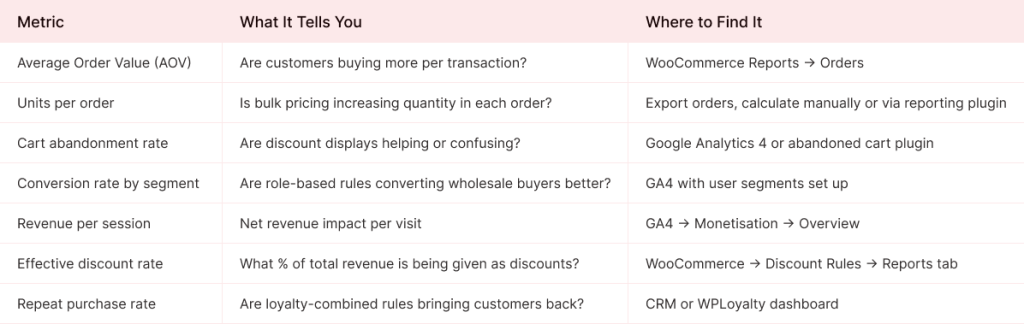
What Good Looks Like – Benchmarks
These figures are drawn from our experience across stores using Discount Rules for WooCommerce, cross-referenced with published WooCommerce performance benchmarks:
- A bulk pricing rule (3 tiers) well-implemented typically increases AOV by 12–25% within the first 30 days in product-heavy stores
- Adding a discount table to product pages increases average units per order by 15–30% in the category where it’s displayed
- Cart threshold discounts with a visible progress indicator (“$22 away from 10% off”) lift cart value uplift by 8–18% on average
- Role-based wholesale pricing reduces coupon-related support tickets by 60–80% after implementation (from our direct support ticket data at Flycart)
- Tiered pricing on B2B product pages shows a measurable reduction in pre-purchase enquiries because buyers can self-serve their pricing calculation
For third-party validation: eCommerce industry benchmarks suggest that stores offering upsell and cross-sell features – a category dynamic pricing falls into – see 10–30% revenue increases (Source: Marketing LTB, 2025).
Your 30-Day Testing Plan
Before Day 1: Record your current baseline metrics:
- AOV (average of the past 30 days)
- Average units per order
- Cart abandonment rate
- Total revenue per day (average)
Day 1–14: Activate your first rule. Don’t change anything else during this window. You need clean data.
Day 15: Do a mid-check. Are orders visibly hitting the discount tier? Is the discount showing in the cart? Any customer complaints about pricing confusion? (Confusion = your display settings need work, not your rule.)
Day 28–30: Pull your metrics again. Compare against baseline:
- AOV up, units per order up → the rule is working. Keep it and add a second.
- AOV flat, units flat → review the tier thresholds. They may be set too high relative to your average order size.
- Revenue up but margin down → your discount is too aggressive. Tighten the tier or add a price floor.
- Customer complaints about wrong pricing → clear transients, check for plugin conflicts.
The most important question isn’t “is the discount working?” – it’s “is more total margin flowing through the store than before?” A 20% discount that doubles order volume is a win. A 20% discount that changes nothing is just revenue given away.
💡 Pro Tip: Set up a simple Google Sheets tracker with your baseline metrics on Day 0 and update it weekly. Twelve weeks of data tells a story that 3 days of data never can. The stores that get dynamic pricing right are the ones that measure patiently – not the ones that tweak rules every 48 hours.
🎯 Key Takeaway – Measuring Results Track AOV, units per order, and effective discount rate as your primary indicators. Expect 12–25% AOV improvement in the first 30 days from a well-configured bulk pricing rule. The 30-day testing plan above gives you a clean, change-controlled way to verify impact before scaling your rule set.
Conclusion
WooCommerce dynamic pricing isn’t a single feature you switch on. It’s a pricing layer you build over time – one rule at a time, each one matching your business model more closely than a flat price ever could.
Key takeaways from this guide:
- Dynamic pricing ≠ surge pricing. For WooCommerce stores, it’s about giving structured discounts, not raising prices during demand spikes.
- Eight types exist. Bulk, tiered, role-based, cart total, category, BOGO, scheduled, and location-based – each solves a different business problem.
- The free version covers the most common setups. Bulk pricing, cart discounts, and category rules are available at no cost.
- PRO unlocks the high-value tiers. Role-based pricing (wholesale), scheduled rules (Black Friday, flash sales), and location-based pricing all require PRO.
- The biggest risk is stacking without priority. Set explicit rule priorities and test overlapping rule combinations before going live.
- Measure for 30 days before judging. A rule isn’t underperforming after 48 hours. Clean data takes a full sales cycle.
The next step is to pick one rule type that matches your biggest current problem and set it up today.
Your pricing system should run itself. Set up your first rule in under 10 minutes with the free version of Discount Rules for WooCommerce. When you’re ready for wholesale, scheduled, and location-based rules – upgrade to PRO.
Frequently Asked Questions
WooCommerce dynamic pricing is a strategy where product prices adjust automatically based on rules you define – such as the quantity purchased, the customer’s user role, the cart subtotal, product category, or purchase date. Unlike static pricing, it applies the right price to the right buyer at the right time, with no coupon codes required. See Beginners Guide to WooCommerce Discounts for a full introduction.
No. WooCommerce’s core only supports fixed product prices and basic coupon-based discounts. To implement dynamic pricing rules – bulk tiers, role-based pricing, scheduled discounts – you need a third-party plugin. Discount Rules for WooCommerce by Flycart (50,000+ active installs) is the most widely used solution, with a free version covering the core use cases.
Install Discount Rules for WooCommerce → go to WooCommerce → Discount Rules → Add New Rule → select your discount type → configure your filter (which products) and discount value → add conditions if needed (role, subtotal, date) → save and test.
For most stores, Discount Rules for WooCommerce by Flycart offers the best combination of features, ease of use, and pricing. The free version handles the most common use cases. Other solid options include YITH Dynamic Pricing & Discounts,Advanced Dynamic Pricing by Acowebs, and WooCommerce Dynamic Pricing by RightPress (Pricepep). See Best WooCommerce Discount Plugins – Full Comparison for a detailed breakdown.
Yes – this is role-based pricing. Assign customers to WordPress user roles (e.g., “Wholesale”, “VIP”) and create pricing rules per role. When a wholesale customer logs in, they see their negotiated prices automatically. Retail visitors see standard pricing. This requires the PRO version of Discount Rules. Full setup: Discount Based on User Role documentation.
Tiered pricing gives progressively larger discounts at defined quantity thresholds. You set quantity ranges (e.g., 1–5 units at $30, 6–10 at $26, 11+ at $22). A pricing table on the product page shows customers all tiers before they add anything to cart – giving them a clear incentive to increase their order size. Setup guide: How to Set Up WooCommerce Tiered Pricing.
It can, if misconfigured. The three most common causes are: no minimum price floor on bulk tiers, unlimited rule stacking without a priority cap, and applying aggressive discounts to low-margin products. The fix: calculate your break-even price per product before building tiers, use the priority system to cap stacking, and exclude your lowest-margin items from sitewide rules.
In Discount Rules → Settings → Display Settings, enable the Pricing Table toggle. Choose its position (before or after the Add to Cart button), and customise column labels. The table renders automatically for any product with an active bulk or tiered rule – no shortcode or developer needed. Covered in detail in Display Discount Table documentation.